Query Library
Save queries for reuse and sharing with your team
The Query Library is a shared collection of queries available to all users of your Berserk instance. Queries are organized into folders and stored as YAML files on disk, optionally synced to a Git repository for version control and collaboration.
Planned Feature
All library queries are currently visible to every user on the instance. Per-user private queries are planned.
Using the Library
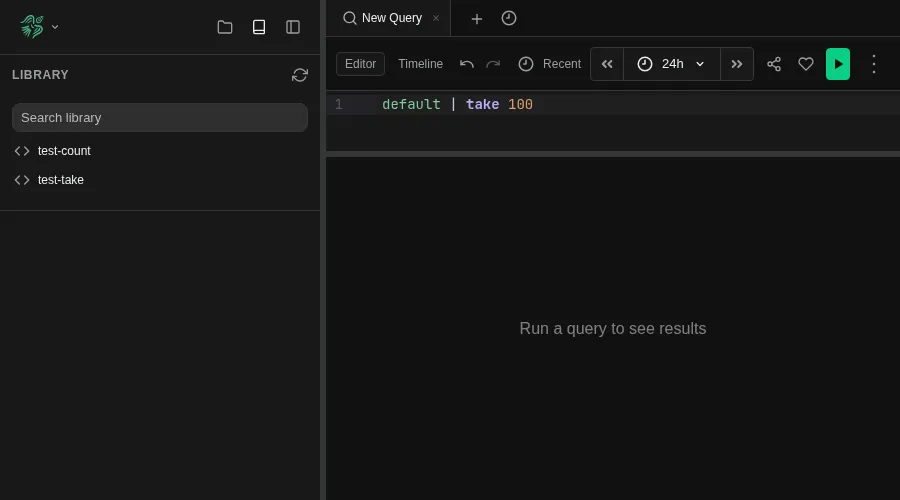
The Library panel is accessible from the sidebar (book icon) or the toolbar tab. From there you can:
- Browse queries organized in folders
- Search by name or query text
- Select a query to open it in a new Explore tab
- Save the current query to the library using the save button in the editor toolbar
- Delete queries you no longer need
Git Sync
When connected to a Git repository, Git becomes the source of truth for your shared queries. Changes made in the UI are committed and pushed automatically; changes pushed to Git from any source — CI pipelines, editors, scripts — are pulled into the UI on the next sync cycle.
For setup and deployment, see Git Sync Configuration.
How It Works
Queries are stored as individual YAML files in a library/queries/ directory. The directory structure mirrors the folder hierarchy you see in the UI. When Git Sync is configured, changes flow bidirectionally — edits made in the UI are committed and pushed to Git, and changes pushed to Git are pulled into the UI.
File Format
Each query is a single YAML file:
# library/queries/charts/time-series.yaml
query: |
  default | summarize count() by bin_auto($time)
since: "24h ago"
until: "now"
Sync Loop
On a configurable interval (default 60 seconds), the sync loop:
- Commit dirty — stages and commits any YAML files written since the last sync
- Pull with rebase — fetches remote changes and rebases local commits on top
- Push — pushes local commits to the remote if any are ahead of origin
- Reload — if the pull brought new changes, reloads the in-memory query cache
Mutations
When a user saves or deletes a query in the UI:
- The change is written to disk immediately
- A background commit is created with the user's identity as the Git author and pushed to the remote
- If the push fails (e.g. network issue), the commit remains local and the next sync cycle will push it
Conflict Resolution
If git pull --rebase fails during the sync cycle (conflict on the same file), the sync loop resolves it by accepting the remote version:
- Aborts the rebase
- Hard-resets to the remote branch
- Sets sync status to Error so the UI surfaces it
The local change is lost but remains in the Git reflog for manual recovery. Conflicts are rare in practice — each query is its own file, so two users would need to edit the exact same query within the same polling interval.
Git Sync assumes a single UI instance writes to the repository. Running multiple UI replicas with Git Sync enabled is not supported.
Directory Layout
The folder structure in Git mirrors the folder hierarchy in the UI:
library/
├── queries/
│   ├── logs/
│   │   ├── json/
│   │   │   ├── bunyan.yaml
│   │   │   └── pino.yaml
│   │   └── syslog.yaml
│   └── charts/
│       ├── time-series.yaml
│       └── barchart/
│           └── service-count.yaml
A file at queries/logs/json/bunyan.yaml appears in the UI under logs > json > bunyan.
Co-locating Queries with Source Code
Git Sync lets you keep your Berserk queries alongside your application source code in the same repository. This makes it easy to keep your log statements in code synced with the queries you use to find them in Berserk.
# Clone the library repo
git clone git@github.com:your-org/berserk-library.git
cd berserk-library

# Add a new query
mkdir -p queries/alerts
cat > queries/alerts/high-error-rate.yaml << 'EOF'
query: |
  default
  | where severity_number >= 17
  | summarize error_count = count() by service = tostring(resource.attributes["service.name"]), bin($time, 5m)
  | where error_count > 100
since: "1h ago"
until: "now"
EOF

# Commit and push
git add .
git commit -m "Add high error rate alert query"
git push
The UI picks up the change within the configured polling interval.
Sync Status
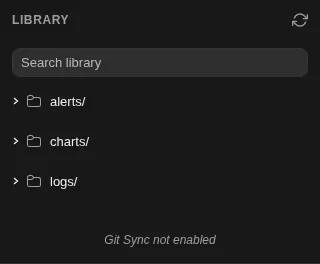
The Library panel shows a sync status indicator:
| Indicator | Meaning |
|---|---|
| "Git Sync not enabled" | Git Sync is not configured (file-only mode) |
| Green | Synced with remote |
| Orange | Local commits pending push |
| Red | Sync error (hover for details) |