Filters
Build log filters visually with a three-step popover
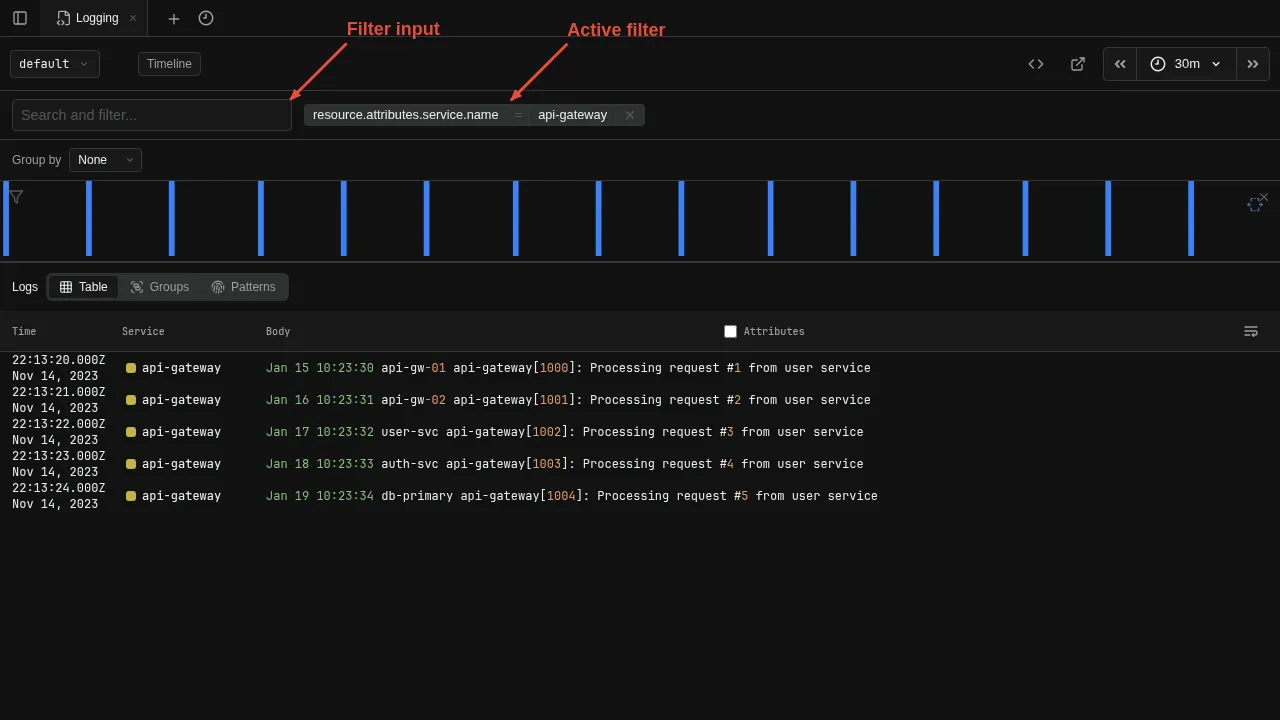
Build filters visually using the filter bar. Each filter appears as a chip showing the field, operator, and value. Click the filter input to open a three-step popover that walks you through building a filter. The field names and values shown in the popover are gathered from the current data using the otel-log-stats operator.
Step 1 — Field
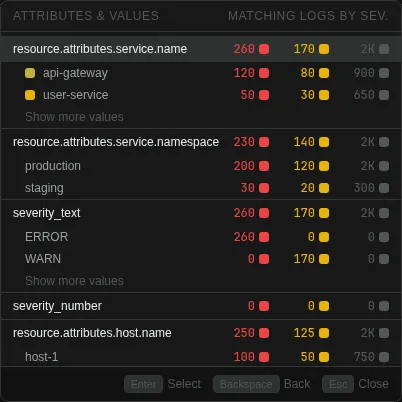
The popover lists every field found in the current result set. Click a field name to advance to the operator step, or click a field's value directly to add an equals filter in one click.
Step 2 — Operator
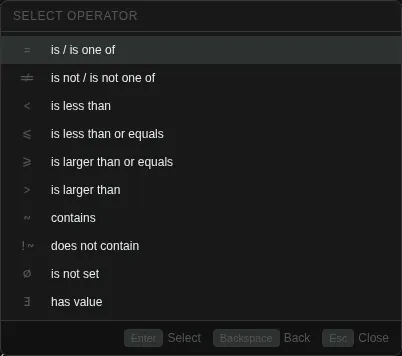
Choose how to match. The selected field appears as a tag in the input.
| Operator | Meaning |
|---|---|
| in / not in | Exact match against one or more values |
| contains / not contains | Substring match |
| < / <= / >= / > | Comparison |
| is null / is not null | Null check |
Step 3 — Value
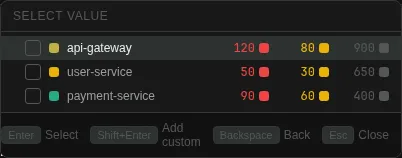
Pick one or more values. Click a value to create the filter immediately, or tick checkboxes to select multiple values and press Enter to confirm. You can also type a custom value and press Shift+Enter to add it to the selection.
Filters can also be added by clicking a field value directly in the log results.