Filters
Build log filters visually with a three-step popover
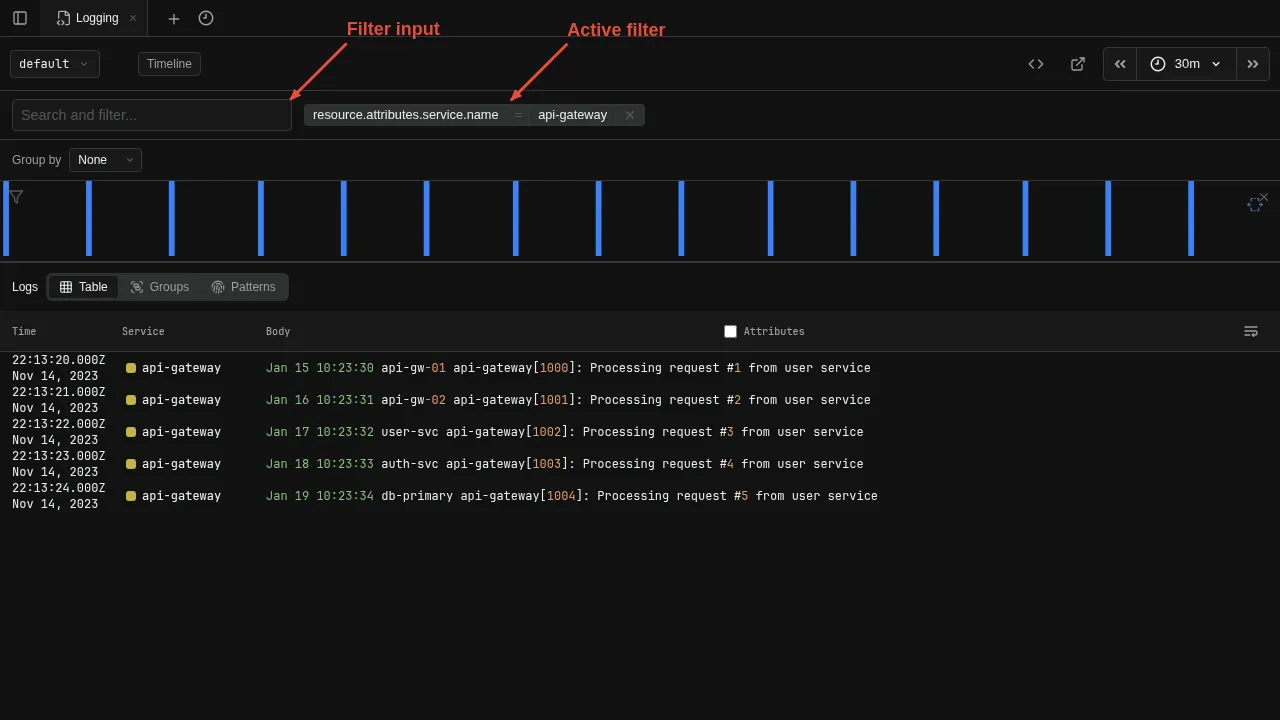
Build filters visually using the filter bar. Each filter appears as a chip showing the field, operator, and value. Click the filter input to open a three-step popover that walks you through building a filter. The field names and values shown in the popover are gathered from the current data using the otel-log-stats operator.
Step 1 — Field
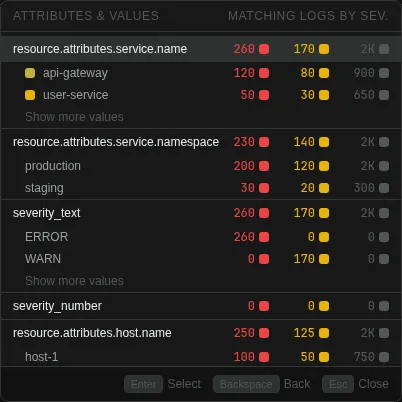
The popover lists every field found in the current result set. Click a field name to advance to the operator step, or click a field's value directly to add an equals filter in one click.
Step 2 — Operator
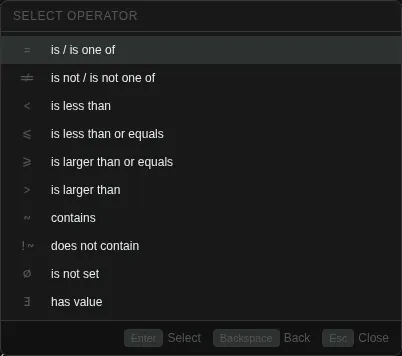
Choose how to match. The selected field appears as a tag in the input.
| Operator | Meaning |
|---|---|
= / != | Exact match against one or more values |
contains / !contains | Substring match |
startswith / endswith | Prefix / suffix match |
matches regex / not matches regex | Regular-expression match / non-match |
| < / <= / >= / > | Comparison |
isnull / isnotnull | Null / presence check |
isnull and isnotnull take no value, so picking one creates the filter immediately.
Step 3 — Value
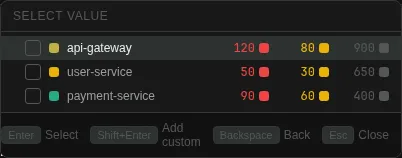
Pick one or more values. Each value has a checkbox: click a value to toggle it in or out of the selection, then press Enter or click Apply filter to create the filter. You can also type a value that is not in the list — it joins the selection and is included when you apply.
Operators that take a single value (comparison, contains, startswith, endswith, matches regex) show a text box instead: type the value, then press Enter or click Apply filter.
Filters can also be added by clicking a field value directly in the log results.